onlineEFD Mobile App User Guide

Complete guide for creating and printing receipts on your mobile device

Mobile First

Optimized for mobile devices with touch-friendly interface

TRA Compliant

Fully compliant with Tanzania Revenue Authority requirements

Real-time Sync

Instant synchronization with TRA systems

Need Help?

If you encounter any issues with the onlineEFD mobile application, use the built-in Customer Care and IT Support features in the app.

1

Open the onlineEFD Mobile App

Launch the onlineEFD application on your mobile device. Make sure you have a stable internet connection.

  • Ensure you're logged in with your TRA credentials
  • Check that your device is registered and activated
  • Verify you have the latest app version
Tip: Enable auto-login for faster access during busy business hours.
2

Select "New Receipt"

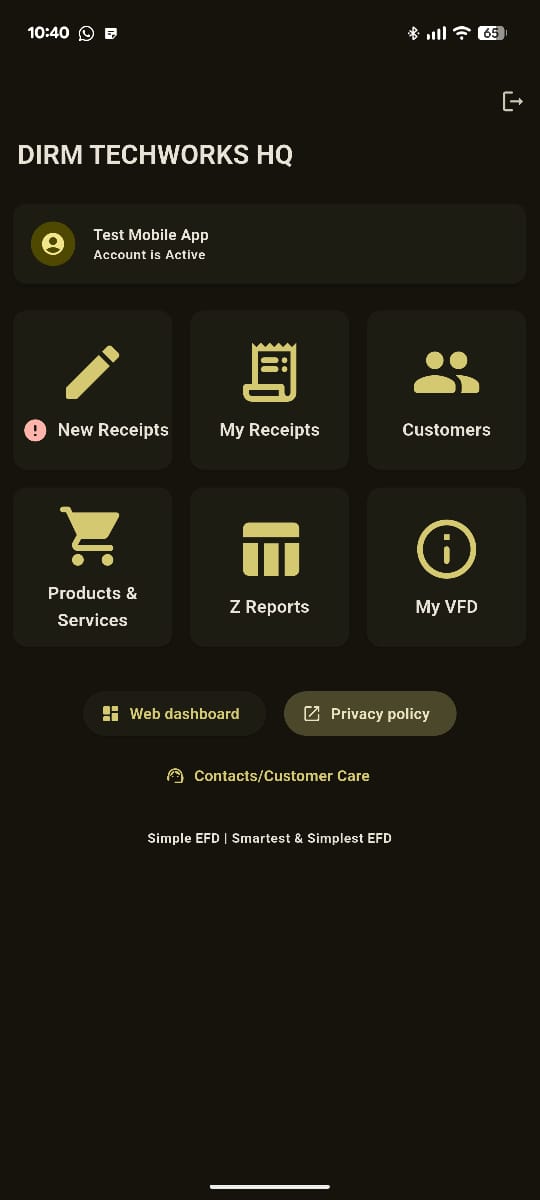
From the main dashboard, tap the "New Receipt" button to start creating a new fiscal receipt.

  • The "New Receipts" button is located at the top-left of the main dashboard
  • It has a pencil icon and may show a red exclamation mark for notifications
  • Ensure you're in the main dashboard screen before proceeding
onlineEFD Mobile App Dashboard
3

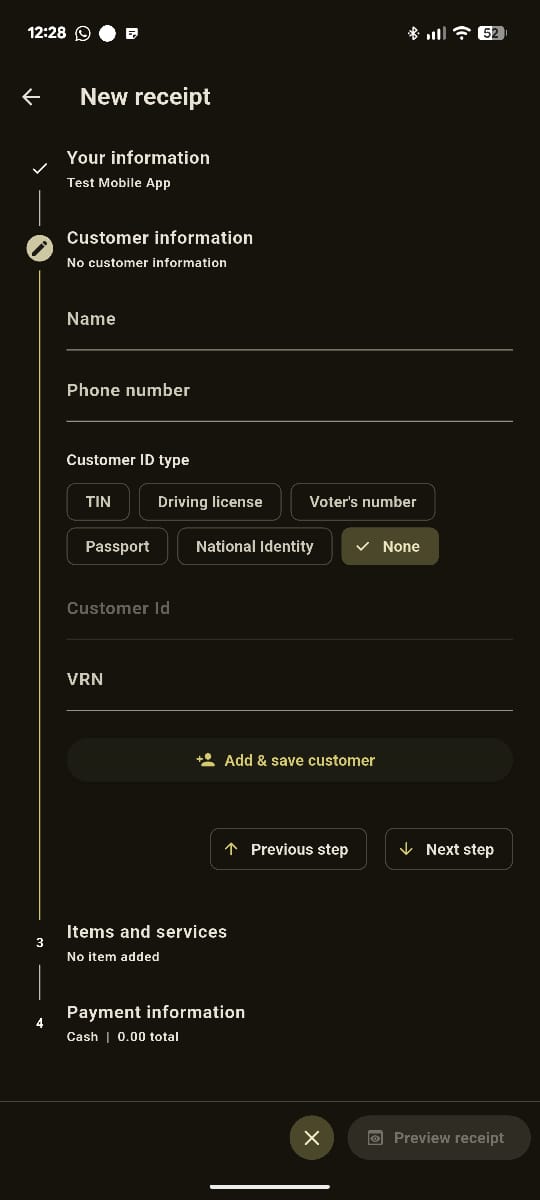
Enter Customer Information

Add customer details if required. For B2C sales, customer information may be optional.

  • Customer Name (optional for retail sales)
  • TIN Number (required for B2B transactions)
  • Customer Phone Number (for digital receipt delivery)
  • Select customer ID type and fill the specific ID number
  • Press Add & save customer to save customer's details
Important: Always verify TIN numbers for business customers to ensure compliance.
Customer Information Form
4

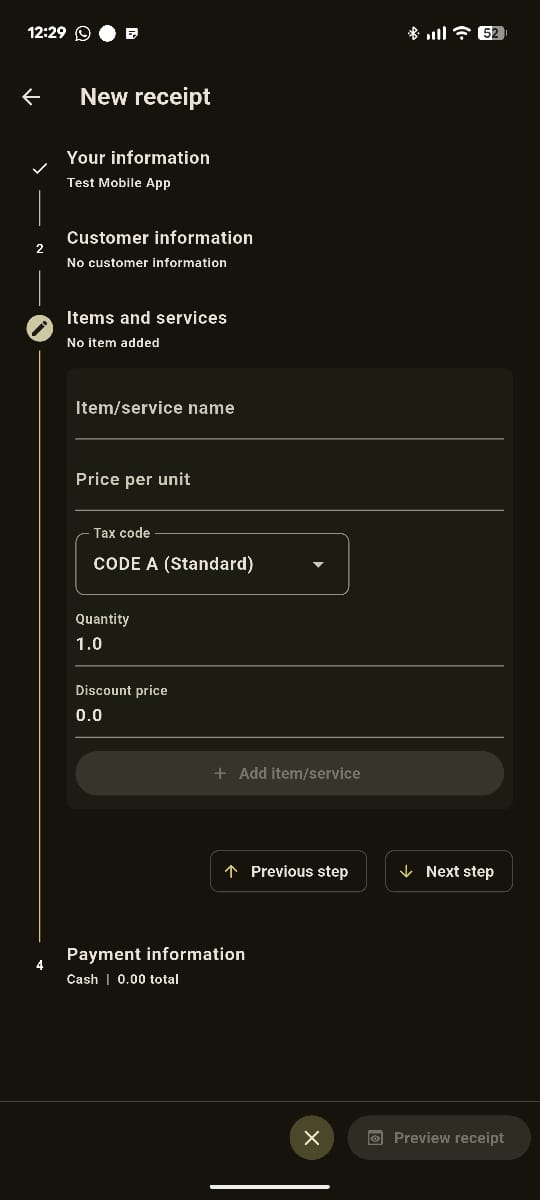
Add Items

Enter the products or services being sold. Each item requires specific information.

  • Item name
  • Price per Unit
  • Select tax code type (Standard, Special rate, Zero rated, Special relief or Exempted)
  • Quantity sold
  • Discount (if applicable)
  • Press Add item/service to add the item
Items and Services Form
5

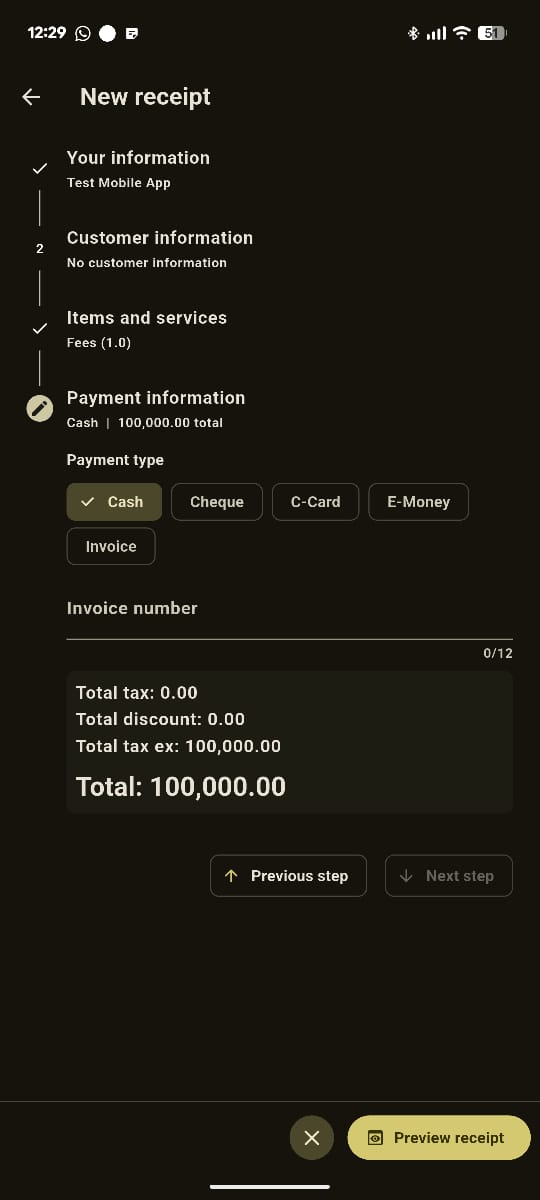
Payment Information

The app will automatically calculate totals including Discounts and taxes.

  • Select the payment type(Cash, Cheque, C-Card, E-Money or Invoice)
  • Write the invoice number if Available
Tip: Review all information before proceeding to ensure accuracy.
Payment Information Form
7

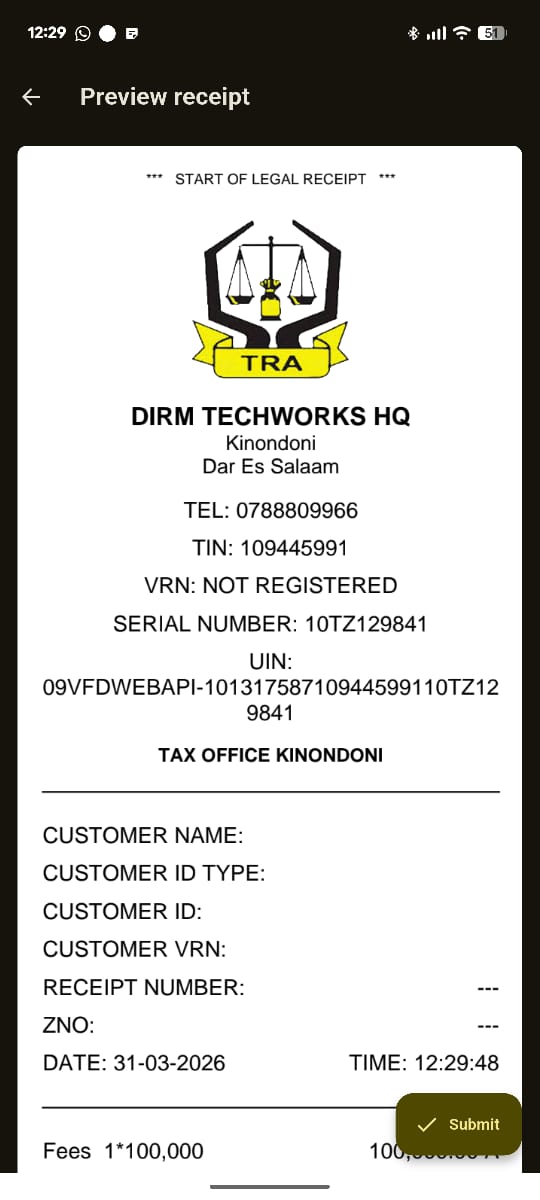
Receipt Preview

Review the receipt details before finalizing.

  • Press the "Preview" button to view the receipt
  • The Preview Button is located at the bottom right corner of the screen
  • Review all details carefully before proceeding
  • If everything looks correct, press the "Submit" button to finalize
  • The Submit button is located at the bottom right corner of the screen
Important: The app will automatically generate a TRA confirmation once the submission is successful.
Receipt Preview Screen
1

Check Printer Compatibility

Ensure your printer is compatible with the onlineEFD mobile app.

  • Bluetooth thermal printers (recommended)
  • Command-enabled printers
Recommendation: Recommended to use TRA-approved fiscal printers.
2

Connect Printer to Mobile Device

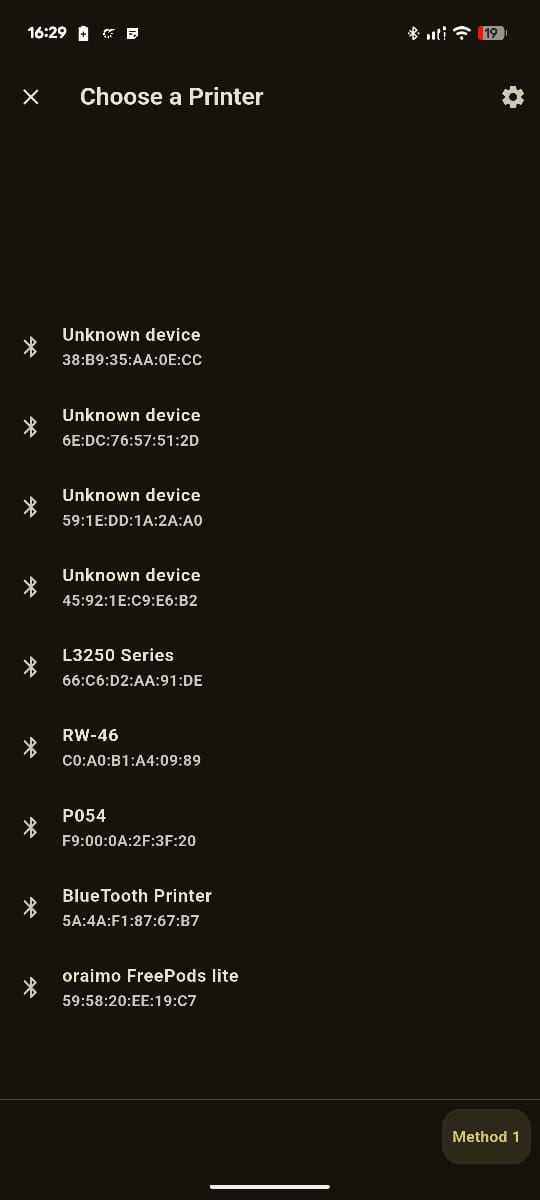
Establish a Bluetooth connection between your mobile device and the printer.

  • Bluetooth: Enable Bluetooth on both devices and pair them
  • Look for the printer in the Bluetooth devices list and select it
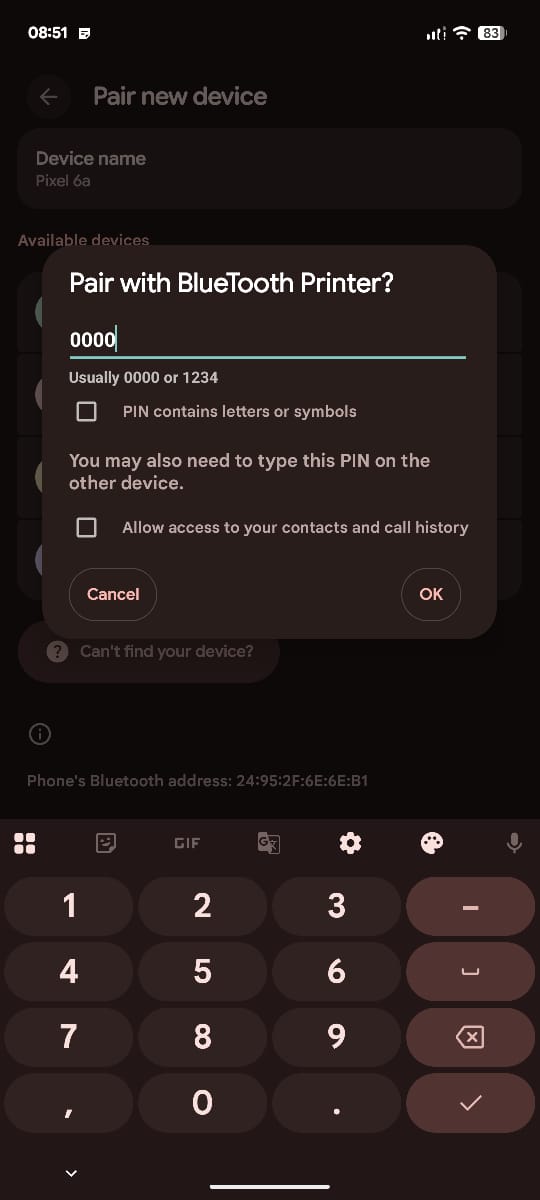
  • Enter the pairing code on your mobile phone(0000 or 1234) to pair the printer with your phone
Tip: Make sure the printer is powered on and in pairing mode.
Tip: For iOS devices, there is no need to pair the printer beforehand.
Bluetooth Printer Pairing
3

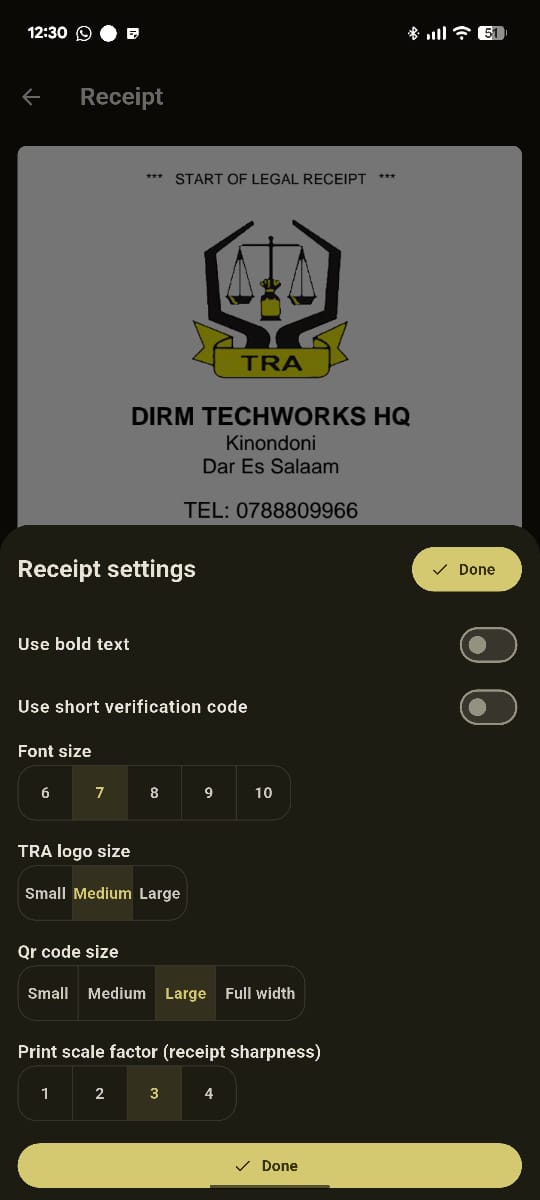
Receipt Settings

Set receipt settings in the onlineEFD app.

  • Choose to use bold text or not on the receipt
  • Choose to use short or long verification code on receipt
  • Choose size of the TRA logo on the receipt
  • Choose size of the QR code on the receipt
  • Choose print scale factor (receipt sharpness) on the receipt
  • Press "Done" button to save the settings
Tip: Use Roll57 for small receipt papers and Roll80 for larger receipt papers.

Important: Always use TRA-approved thermal paper for compliance.
Receipt Settings Screen
4

Receipt Printing

After choosing the settings, you can print receipts.

  • At the bottom of the onlineEFD app, press print icon (🖨️) to print the receipt
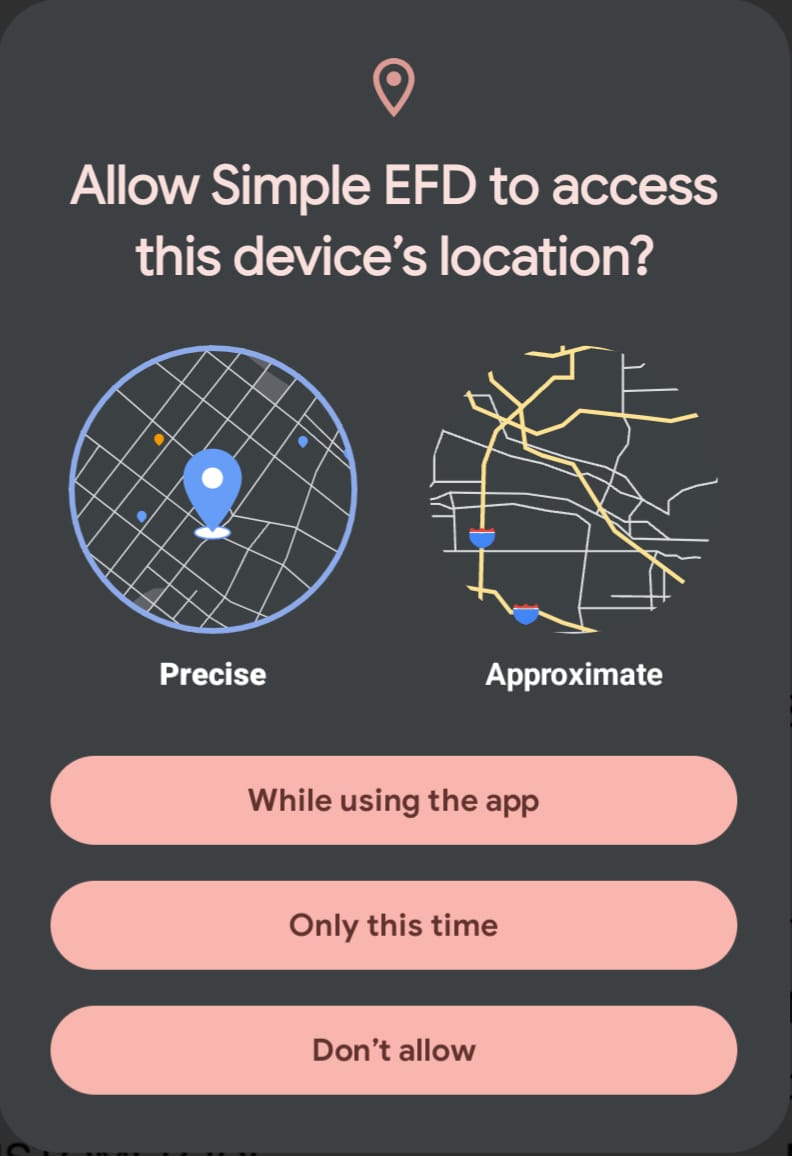
  • For first time user, allow the App to use device's location
  • Allow also the device to determine the relative positioning of nearby devices
Allow App to Use Location
5

Printer Settings

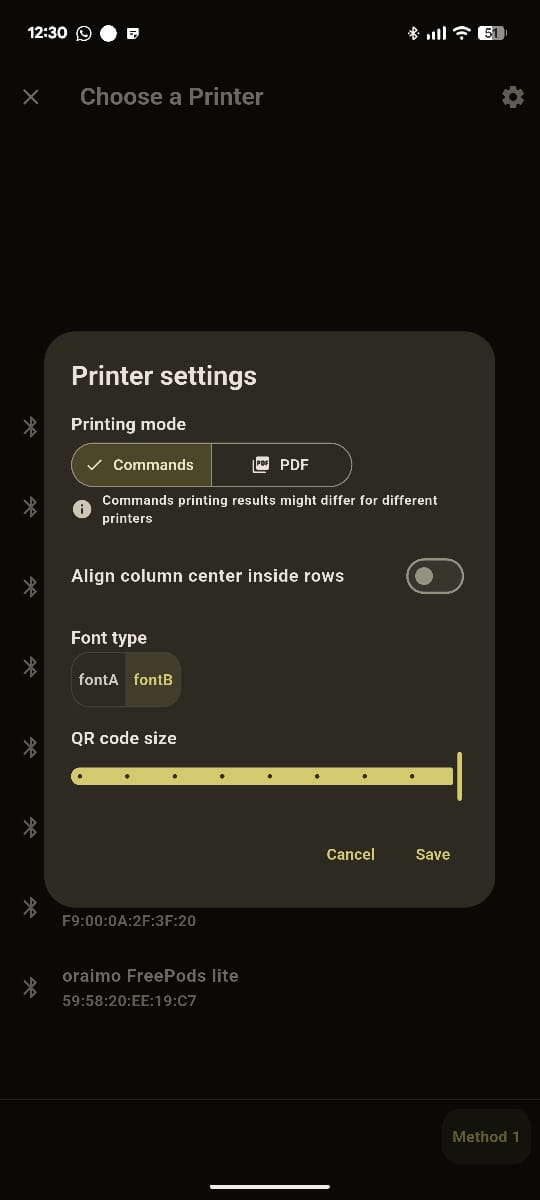
After allowing the app to use location, you can configure printer settings for optimal printing performance by clicking the Settings icon at the top right of the page.

  • At the top right corner of the print dialog, press the Settings icon
  • Select the printing mode (Commands or PDF)
  • For Commands mode, choose text alignment options
  • Adjust print density and quality settings
  • Save settings to apply changes
Tip: When using the command mode, the receipt settings are not applicable and will be ignored.
Printer Settings Screen
6

Print from Receipt List

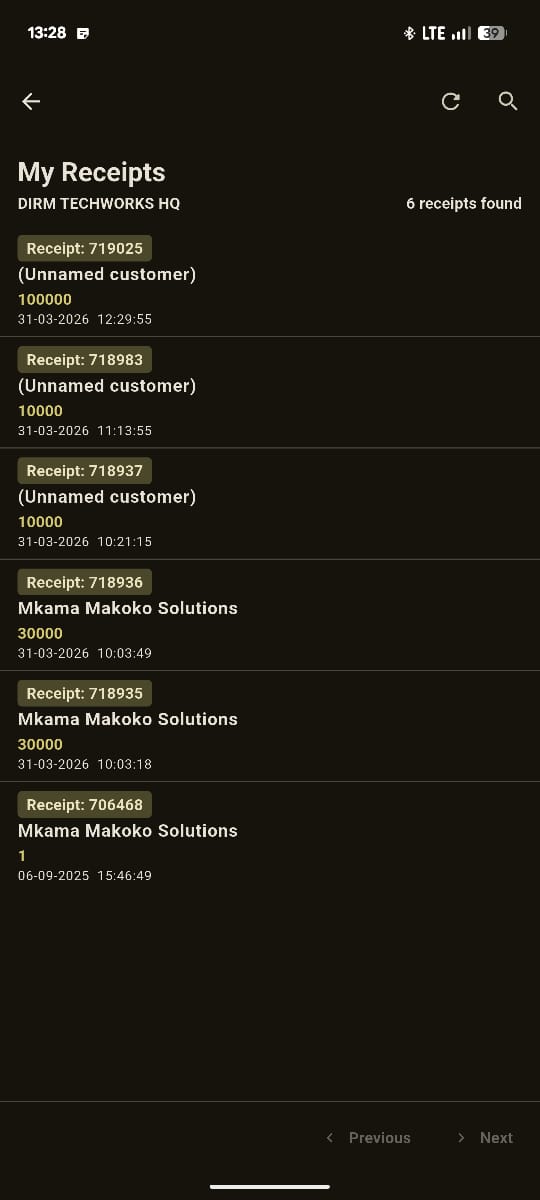
You can also print receipts directly from the receipt list on the main dashboard.

  • From the main Dashboard, press My Receipts
  • The receipt list will be displayed
  • Find the receipt you want to print and select it
  • Confirm print settings and tap Print icon (🖨️)
Receipt List Screen
7

Receipt Printing

After configuring all settings, you can now print your receipt with optimal performance.

  • Ensure your printer is connected and ready
  • Select the correct printer from the device list
  • Check that paper is properly loaded in the printer
  • Wait for the printing process to complete
  • Verify the printed receipt contains all required information
Tip: If printing fails, check Bluetooth connection and printer status, then try again.

Important: Always ensure the printed receipt shows the TRA verification code and QR code for compliance.
Receipt Printing
8

Troubleshoot Common Issues

Resolve common printing problems quickly.

  • No connection: Check Bluetooth is enabled
  • Poor quality: Clean print head or replace paper
  • Wrong size: Adjust paper settings in app
  • Slow printing: Check printer battery/power
  • Partial print: Clear paper path and restart
  • Pair printer and device: Ensure they are paired in Bluetooth settings
  • For iphone: Allow the application to use bluetooth from Privacy and Security settings
  • Blank printing: Check if the paper is loaded correctly
  • Missing some features on the dashboard: Consult your account administrator
× Full size image